> ## Documentation Index
> Fetch the complete documentation index at: https://developer.ongoody.com/llms.txt
> Use this file to discover all available pages before exploring further.
# Developer mode
> Enable Developer Mode on the Goody website to get product IDs and card IDs.
You can use Developer Mode on the Goody website to:
* Find product IDs to add to a create order batch payload
* Find the ID of digital greeting cards to add to a create order batch payload
* Obtain a cart payload from the contents of your Goody cart
## Enable Developer Mode
1. Go to your Account menu by clicking the user icon on the top-left of the Goody website, and then click **My Account**.
2. Click the **API Keys** menu item on the account sub-menu.
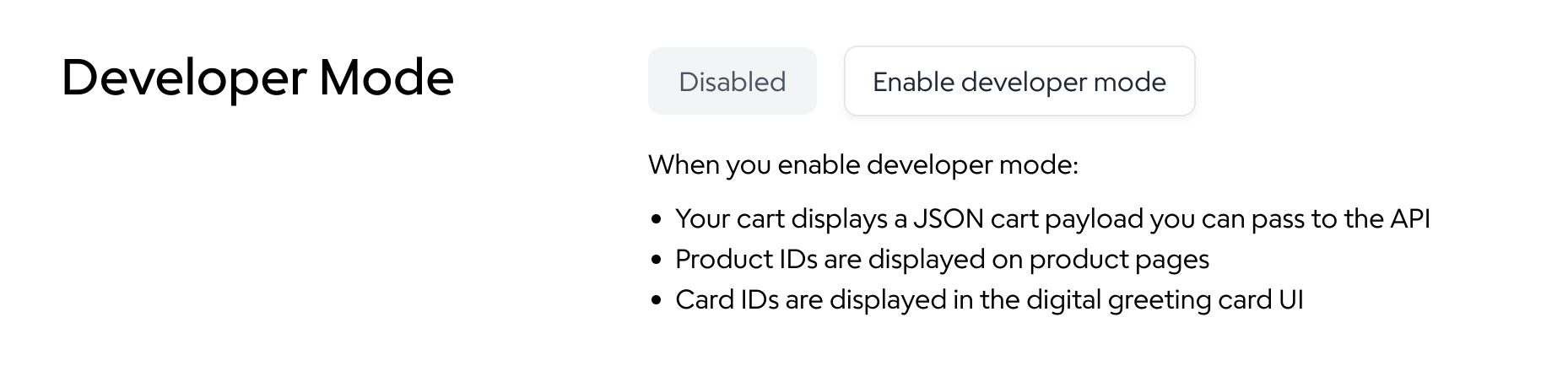
3. Under **Developer Mode**, click **Enable developer mode**.
 ## Find product IDs
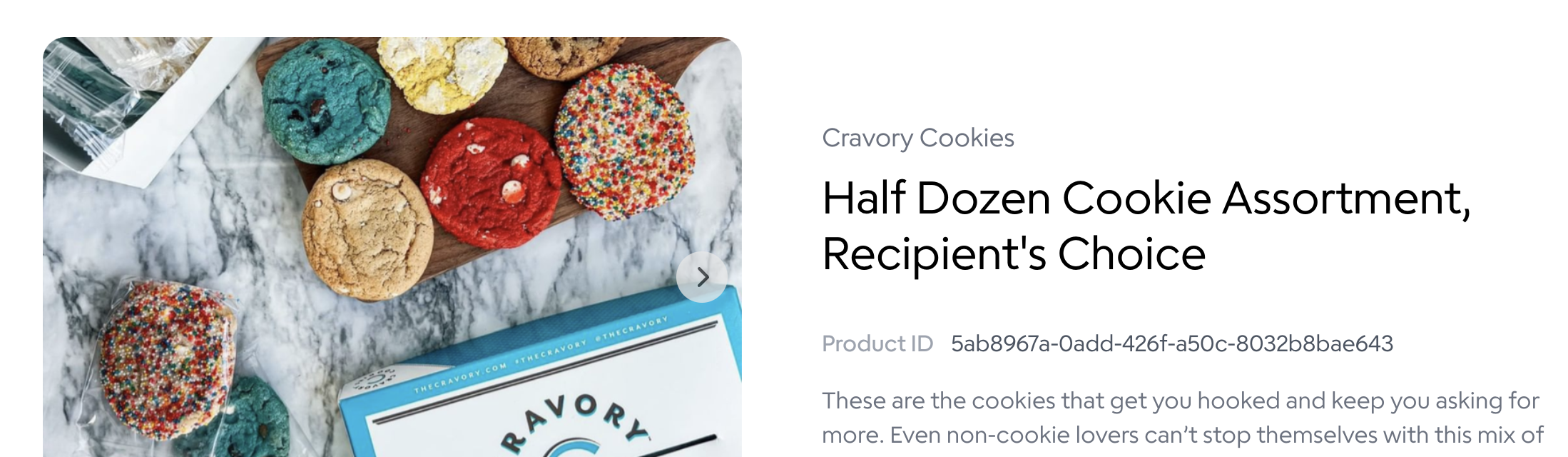
When clicking into a product page with Developer Mode enabled, the Product ID is displayed below the product name.
## Find product IDs
When clicking into a product page with Developer Mode enabled, the Product ID is displayed below the product name.
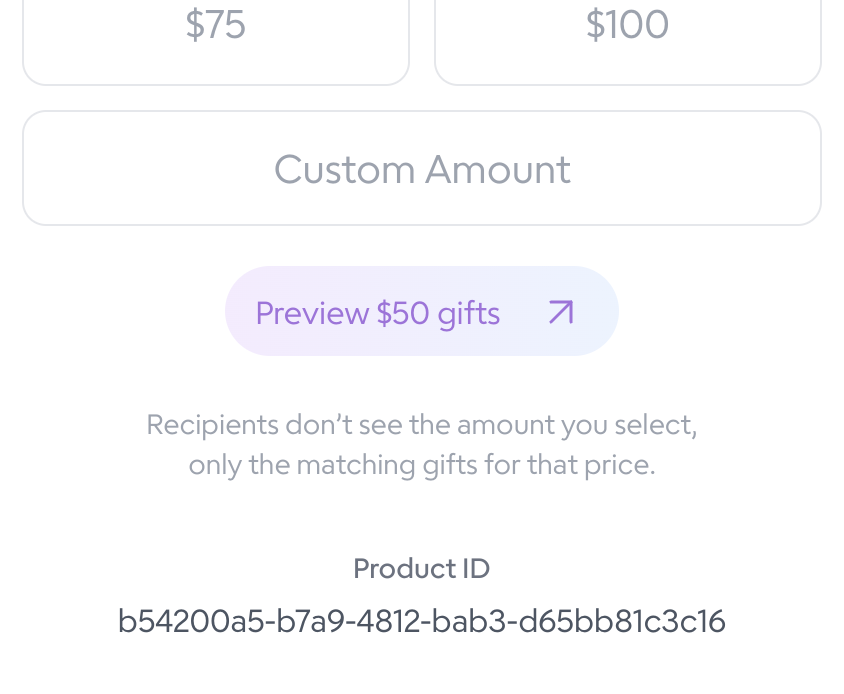
 Some products don't have dedicated product pages. For those products, the product ID is located at the bottom of the brand window.
 ## Find card IDs
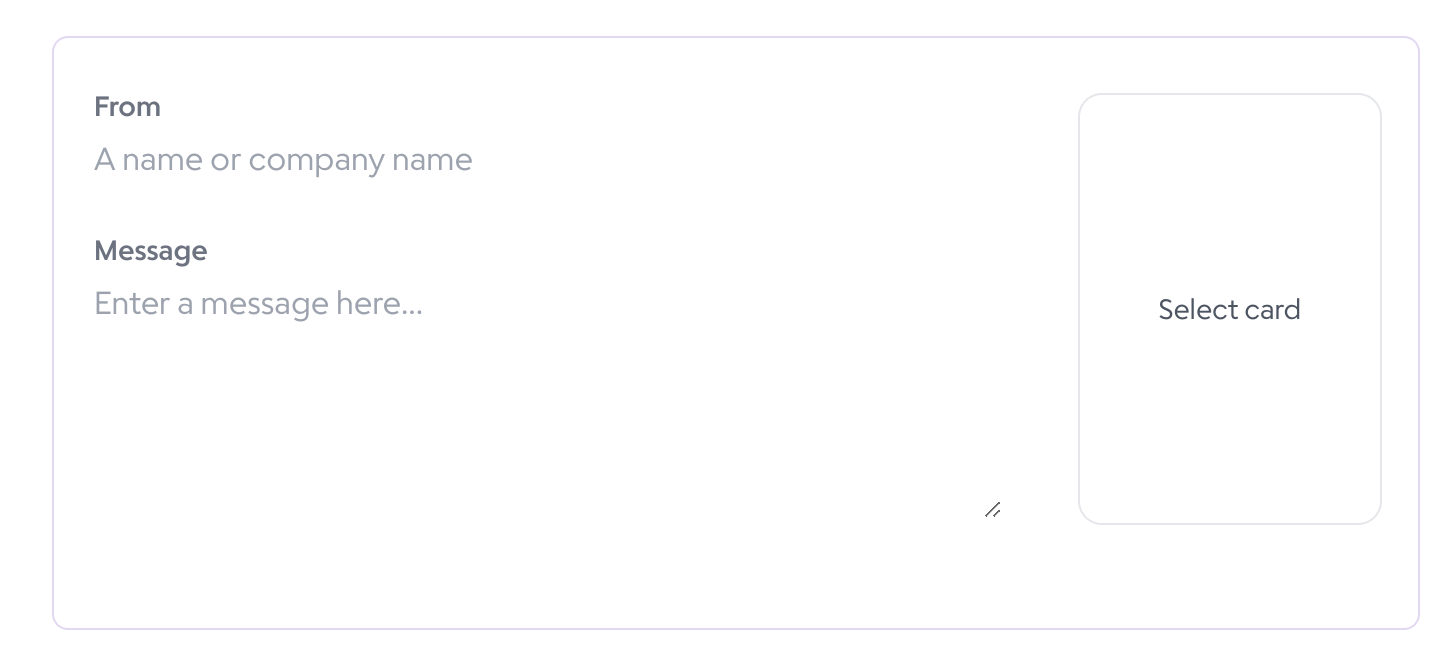
Go to the **Send** page and click the **Select card** button, which might be **Edit card** if you've already selected a card.
## Find card IDs
Go to the **Send** page and click the **Select card** button, which might be **Edit card** if you've already selected a card.
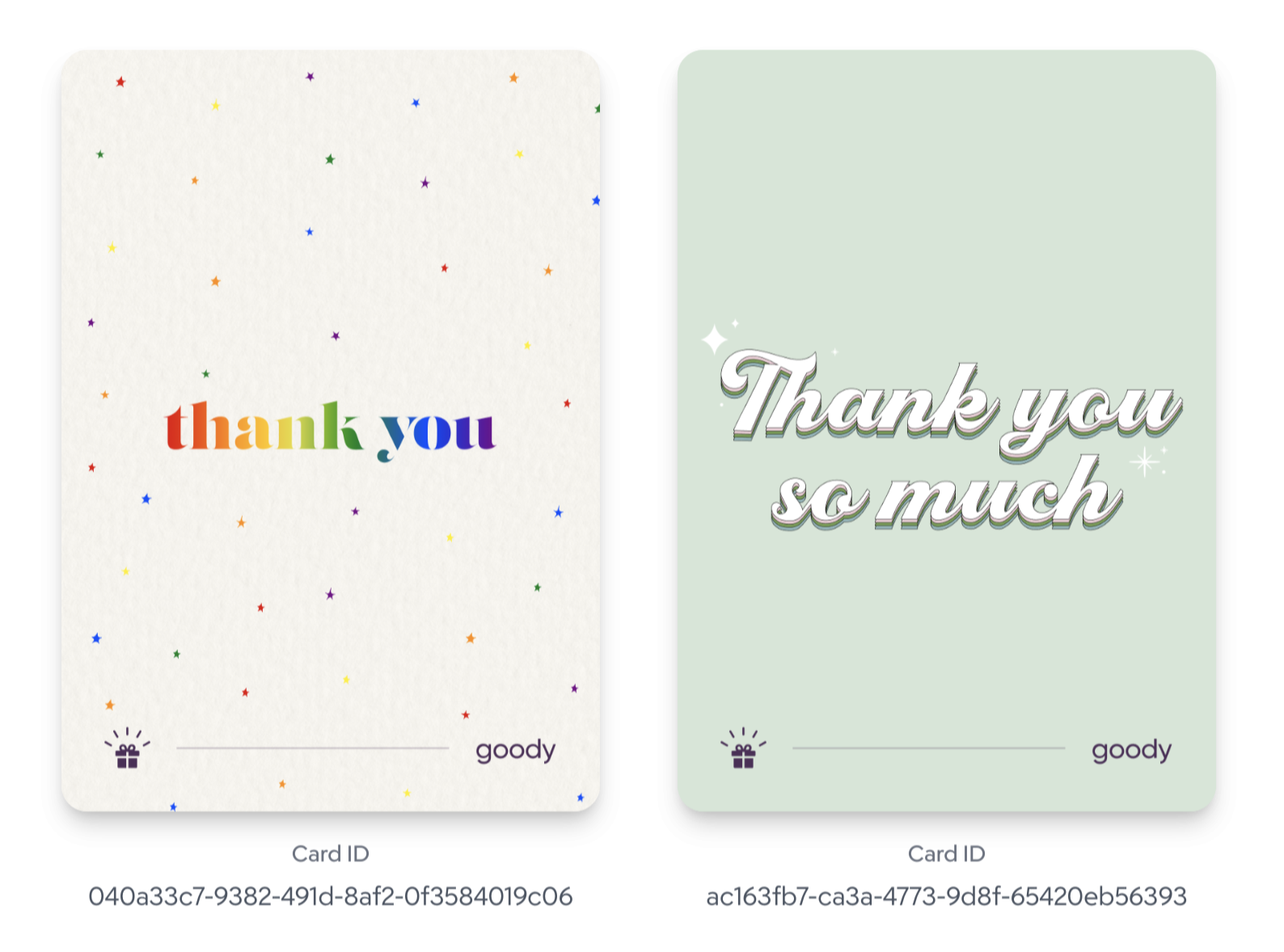
 Card IDs are displayed below the card image.
 ## Get cart payload
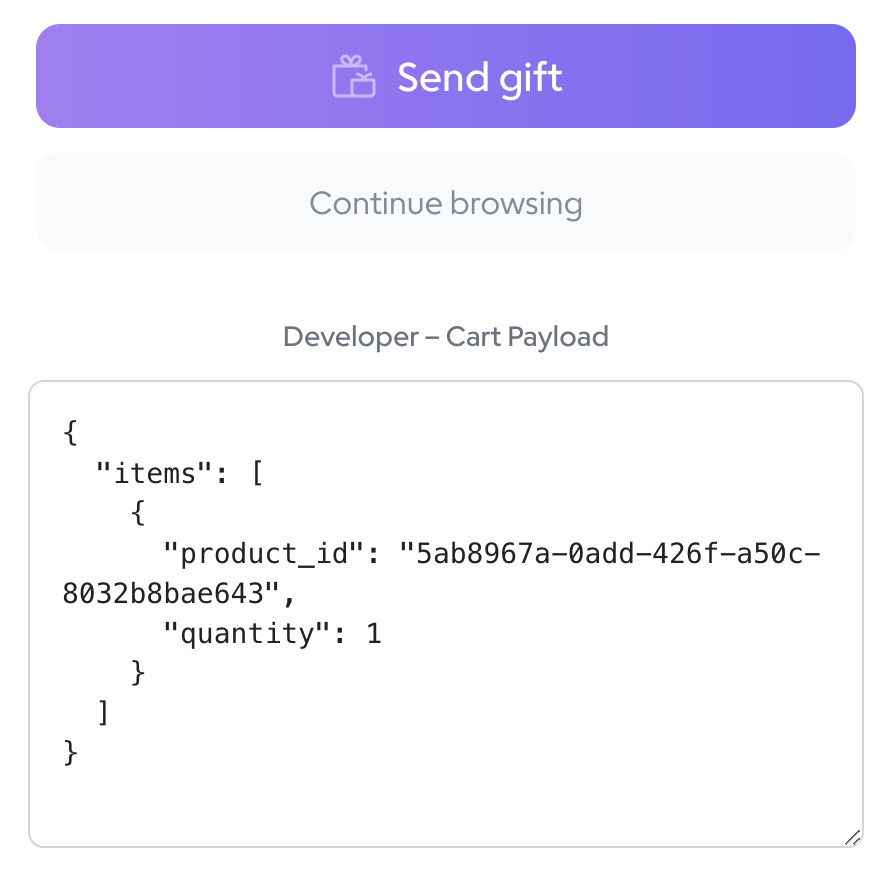
Once you've added products to your cart, you can click the bag icon at the top right to open your cart. The JSON cart payload for the items you've selected is displayed at the bottom of the cart.
## Get cart payload
Once you've added products to your cart, you can click the bag icon at the top right to open your cart. The JSON cart payload for the items you've selected is displayed at the bottom of the cart.